Checking the Configuration
After the two path files have been created and transfered over to your BlackBerry, you
should check the configuration & settings. Please find below my personal settings that I found
the best for my outdoor activities (right now this is riding with the MTB). Depending on your activity
it might make sense to adjust different settings mainly depending on your avarage traveling speed.
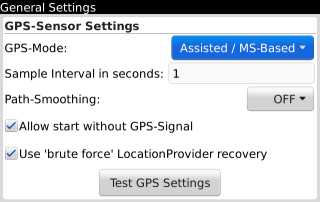
General Settings
Just again as quick reference - I am using GPSLogger with the smallest possible GPS
sample interval - which is one second. The sample interval have the second largest impact on the
battery life while using GPSLogger ('Backlight always ON' have the largest impact).
Path-Smoothing is turned OFF, simply cause I could smooth the path any time
later.
'Brute Force recovery' is IMHO mandatory - since it could not be worse if for some
reason the OS failed to deliver some data for a longer period of time. Even if this option consumes
some little extra power it's worth to use it.
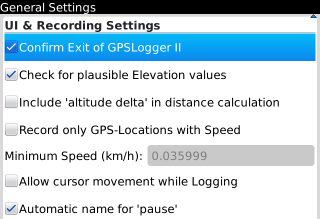
In the next section I would like to emphasize that turning Include 'altitude
delta' in distance calculation OFF would be always a good choice when you expect low GPS-signal
quality during your trip (since a bad GPS-signal would include quite wrong altitude data).
Something you might like to consider to enable is the Record only GPS-Locations
with Speed option. Actually I decide against it, cause since a few releases of GPSLogger it
is possible to delete single recorded points of a recorded path laster.
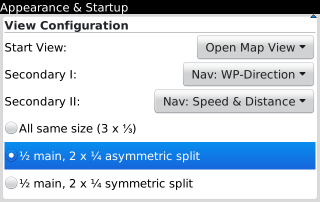
Appearance & Startup
Again this are my personal preferences. All the shown views are actually
brand new in the GPSLogger II release. They have been added for very good reasons - so actually
it's worth to give them a try.
Please note, that the 'Nav: Speed & Distance' View will display your current
traveling speed and the complete traveled distance - so with other words, you will only see
this total distance, if you are actually logging (while navigating)
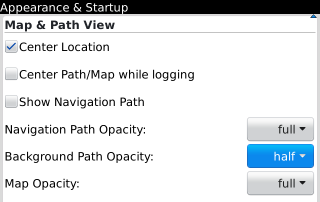
In the 'Map & Path View' section I would like to draw your attention to the
opacity setting of the Background Path display (I use 'half') and the disabled display of
the Navigation Path ('Show Navigation Path' OFF).
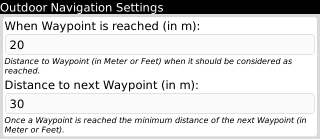
Outdoor Navigation Setting
The '
When Waypoint is reached' and the '
Distance to next Waypoint'
settings are the core of the Outddor navigation functionality - so for the special designed
navigation paths (as it has been described
Planing your Route Section)
the displayed values (20m and 30m) would match perfectly with my MTB riding speed.
But just once again - this are my personal preferences - if you are already
happy with your current settings the please simply continue to use them!
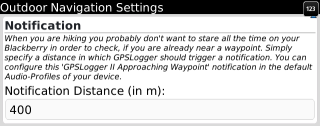
For riding the MTB the Notification setting is not that important - since when the
BlackBerry is mounted to my handlebar I don't notice the vibration alarm, nor that I am able to
hear anything (have in mind I am 40+). But actually when you are hiking/walking this feature can
become really usefull simply cause you can keep your BlackBerry in your pocket and only when you
are approaching an important point on your track you will be notified!
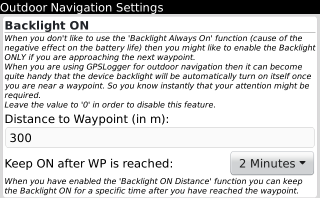
The Waypoint distance dependant Backlight ON feature is the essential key
to increase the battery life of GPSLogger!
Quite a while ago I have compared the battery life of my BlackBerry 9810 running
GPSLogger with different settings. Details can be found in the forum thread:
GPSLogger and Battery Life [some data].
At the end of the day using the default
Display always ON feature makes only sense for
trips that are shorter then 4 hours or when you have a constant power suply. Both is not the case
when I am on a mountain bike tour.
Actually for my personal use, I had the need to see the GPSLogger information
only when I am near a junction (or another important point on the path). So instead of
having the backlight always ON, this feature auto enable the backlight (ignoring the device lock)
when you have a certain distance to the your waypoint ahead.
The backlight will be keept on while you are approaching (as long as the distance
is less then the specified one) the waypoint. Once the waypoint is reached the backlight will be
turned OFF again automatically.
Of course you can configure a deleay before the backlight will be switched off
again after the waypoint is reached via the 'Keep ON after WP is reached' choice. This
becomes quite handy to still see the direction to the next waypoint for a couple of moments.
Give it a try!