Downloading Open Map data with GPSLogger II on your BlackBerry can be quite a time
consuming task. For your (any my) convenience I have created a small Desktop tool, that is able to
perform the downloading task from a machine with probably more CPU power and network throughput -
YOUR desktop PC or Mac (not tested yet)!
When you connect your BlackBerry Device with the PC/Mac (via USB) or insert the
SD-Card of your BlackBerry into your desktop PC/Mac), then this tool can access your GPSLogger
data and you can initiate the Open Map data download. So later this map data can be used by the
the GPSLogger application running on our BlackBerry Device.
The best location IMHO is the file system of your BlackBerry Device. When you
connect your BlackBerry via USB, you can mount the SDCard and the file system of the device itself
directly to your PC or Mac. Once that is done, just save the JAR file on one of this file system.
Then at any time & anywhere you can just plug in our device via USB and you can instantly use
the OpenMapData Tool (to download any maps to use them later offline with GPSLogger).
Preparation
Start GPSLogger II v3.3.x (or higher) on your BlackBerry at least once and
make sure that the application has download the latest Open Map data Provider Information. Please
have a look in the
Configuration & Settings Section for
details.
Connect your BlackBerry device via the USB Cable to your PC/Mac OR remove
the SD-Card from your device and plug it into your desktop computer (SD-Card removal will of course
only work, if you are storing the GPSLogger tracking information on the SD-Card).
Start the Open Map data desktop Tool by double clicking on the 'GPSLoggerOMDTool.jar'.
If the JRE is configured correctly the application should start after a few moments.
If the application does not start at all then actually this is 'bad luck' - I am sorry
but this Tool comes without any service or support.
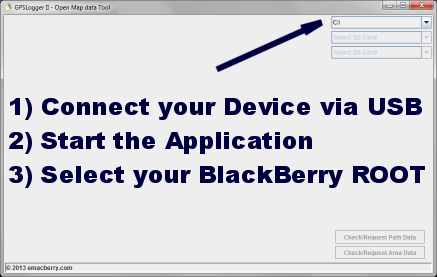
Once the application is started you should see a window similar to the one
on the right hand side.
Again, if the application does not start - don't email me - use the
forum.
Start using the Tool
The first thing you need to do, is to tell the
application where to search for the GPSLogger tracking directory. This will be done via the choice
field that is marked with the arrow.
Please select the appropriate drive/volume and once it's selected the tool will
try to find your GPSLogger directory automatically.
If the application was successful with the search, you will should see instantly
a map of the initial found GPSLogger Path (found).
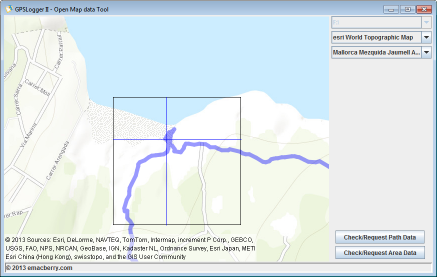
Once the tool has initialized itself you can select in the two remaining choice
fields the Open Map data Provider and in the second on a GPSLogger Path that you
have previously recorded (or imported) via the BlackBerry GPSLogger application.
If you just have a single entry (GoogleMaps) in the Open Map data provider
selection, then the tool haven't found any BlackBerry GPSLogger Open Map data provider
information on your selected BlackBerry root directory (SD-Card) - In this case please check
for the latest Open Map data providers via the GPSLogger BlackBerry application. Details can
be found in the
Configuration & Settings Section.
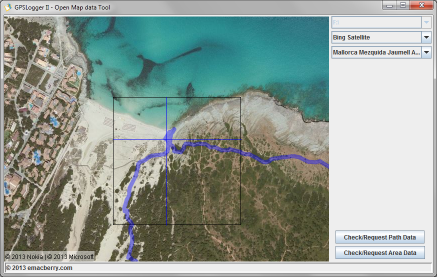
When you have selected a Path the tool will instantly load this path and try to
download the required open map data to display the current pane. You can now start the Open Map
data request for the complete loaded path by pressing the Check/Request Path Data button.
When you only want to download the Open Map data in a 7.5km diameter of a
specific location, then you can move to this location in the path (via the key short cuts) and
then press the Check/Request Area Data Button (see also the 'Free Pan & Area
Download' Section).
Please note that you can navigate though the loaded path while a
Open Map data request is running - but it's not recommended.
Key short cuts
The GPSLogger OMD Tool supports the same key shortcuts as the BlackBerry GPSLogger
to navigate along the path:
- [s]: Start of Path
- [e]: End of Path
- [c]: -10 Records in Path
- [v]: -1 Record in Path
- [b]: +1 Record in Path
- [n]: +10 Records in Path
- [i]: Zoom in
- [o]: Zoom out
- [cursor-Keys]: free map pan
Free Pan Mode & Area Download
You can move arround in the map to request any specific area. The tool will download a 15km square
centered arround the current marker. In certain zoom levels this (downloadable) area will
be marked with a gray square. Please note that when you start a 'Check/Request Area Data'
that the tool always take the position of the cursor as center of the area in the moment you have
pressed the button. Moving the cursor afterwards/while request is in progress will have no
impact on the data that will be downloaded.
