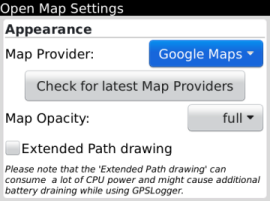
When you accessing the GPSLogger Open Map Data (OMD) Settings for the first time,
then the device is trying to make a connection to emacberry.com in order to download the latest list
of available map data providers from a central server. Please be patient till this list update is
completed.
You can repeat this update of map data providers at any time later by pressing the
'Check for latest Map Providers' Button.
'Map Opacity' should be self explaining ;-) but please note that it might
not work with every open map data provider.
The 'Extended Path drawing' checkbox is only available for devices running
OS6.x or higher. This function will draw the current logging path in a bold semi-transparent blue
line. It took me quite a long time to implement this kind of path rendering and it really looks
quite nice - unfortunately it makes quite some CPU usage, so it's up to you, to device, if you like
to enable it (or leave if off).
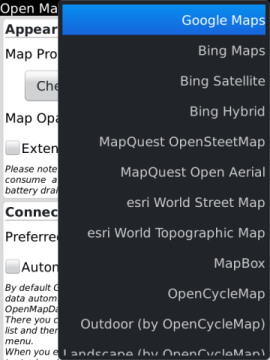
Once the Map Data Providers has been updated you should have a selection like it's
shown in the screenshot on the right hand side.
If your list is way shorter then this means that the automated (or manual requested)
map data provider update request failed for some reason. The most common case is that the application
itself could not establish a http connection to the internet. There are plenty of reasons why this
could be the case - please take a short look into our
faq in oder to find a possible solution.
Right now it's not really predictable if any map data provider is going to change
their term of use, their API's or any other thing that might have a negative impact on the open map
data functionality of GPSLogger.
Specially the support for Google-Maps or Bing!-Maps might change from one day to
another. If the the service will not work any longer, the central provider list on the emacberry.com
server will be updated and you can manually update the map data provider list on your device.
Before you make the decision which open map data provider you would like to use
in GPSLogger, please be so kind and check here on this page (via the embedded map), if the map data provider
have suitable map information for your target area! You should not do that on your device.
You can select here online on the emacberry.com web page the different map providers
(except Bing!-Maps) via the "layer" overlay icon in the upper right corner of the
map screen.
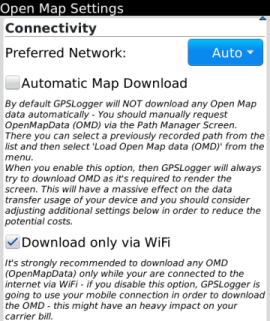
The 'Preferred Network' should be only adjusted, if you are aware of
the consequences. If you haven't ever heard of different transport layers running on your
BlackBerry (I never did as regular user), then the best would be to leave this setting to 'Auto'.
If you are a expert user, then of course you can adjust this setting to match the best available
transport layer for your device.
By default GPSLogger will
not download any Open Map data automatically!
Requesting OpenMapData (OMD) is designed to be a manual process. You can request OMD either via the
Path Manager Screen (select a previously recorded path from the list and then select 'Load Open
Map data (OMD)' from the menu) or via the main 'Open Map data View' (once Path or Navigation-Path
is present you find the 'Load Open Map data (OMD)' in the main BlackBerry menu).
When you enable the 'Automatic Map Download' option, then GPSLogger will
always try to download OMD as it's required to render the current screen (just like any other map
application on your device). This can have a massive effect on the data transfer usage of
your device and you should consider adjusting additional settings in the Open Map data configuration
in order to reduce the potential data transfer.
By default GPSLogger will
only download OpenMap data when the device is
connected via WiFi to the Internet!
It's strongly recommended to download any OMD (OpenMapData) only while your are
connected to the internet via WiFi - when you disable the 'Download only via WiFi' option,
GPSLogger is going to use your mobile connection in order to download the OMD - this might have an
heavy impact on your carrier bill.
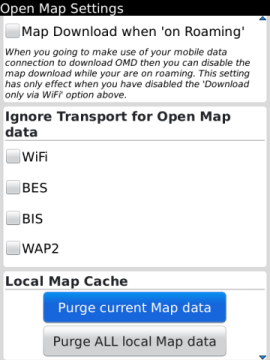
When you going to make use of your mobile data connection to download OMD then you
should leave the 'Map download when on Roaming' option disabled. Please note that this
setting has only effect when you have disabled the 'Download only via WiFi' option.
So when you are on Roaming (and do not have any WiFi connection) and you need to
download additional Open Map data, then you can do this via the mobile network only when
you enable this checkbox!
The 'Ignore Transport for Open Map data' can be adjusted, if you are aware
that a certain transport layer (to establish a internet connection) is not available from your
BlackBerry devive. E.g. you are not connected via BES - or your BES-Admin is blocking certain
internet services (could be the case for the map services). There might be other reasons why a certain
transport layer might not be available to you.
Please see also the 'Preferred Network' since the "ignored" transport layers
will be of course ignored in the 'Auto' configuration.
Via the 'Local Map Cache' Section you can PURGE either ALL local cached
map data or just for the current selected map data provider.
Please note that the deletion of the local files could take some time since ther could
be plenty of files. Once all files (that need to be deleted) has been evaluated, you will see a
progress bar which also have a 'cancel' option.