
| |
Iconify User ManualQuick access to Your Contacts (Dial or Mail), Applications, Websites & Files/FoldersCreate App,- File-, Web-, Dial- & MailLinks with individual icons directly on your HomeScreen |
1) Select a Contact in your AddressBook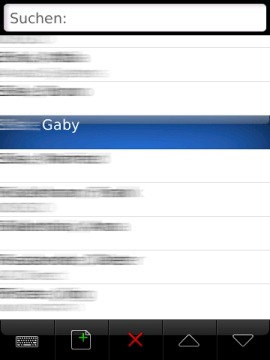 |
2) Press the #Menu...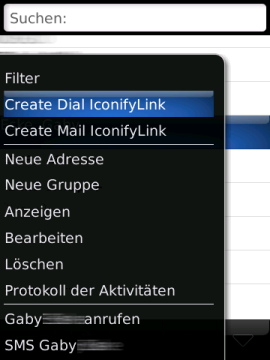 and select 'Create Dial/Mail IconifyLink' from the Menu |
3) Start to
configure...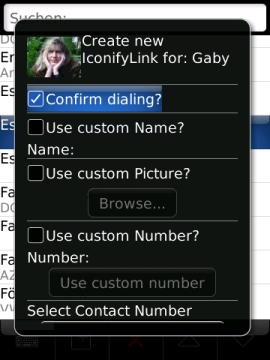 your Dial (or Mail) link |
4) ...
continue configuration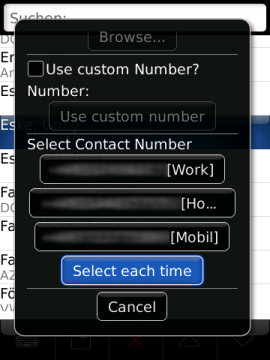 and finish the Link Configuration with the Phone Number that should be used - or select a number each time |
5) Start of
the Launcher installation Please press the 'Download' Button to start the installation of the required LinkLauncher. This installation is 100% offline [no additional data charges] |
6) Wait...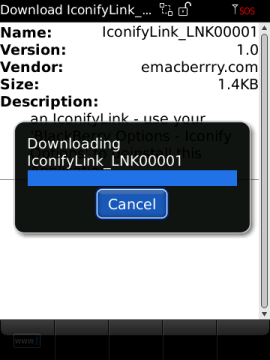 till the installation is completed |
7) Select
'Run' to...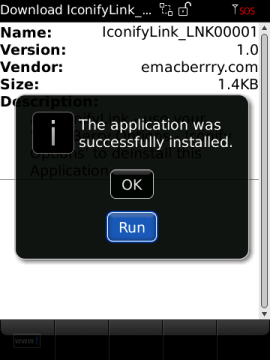 initialize your new created Link |
8) See your
'Download' Folder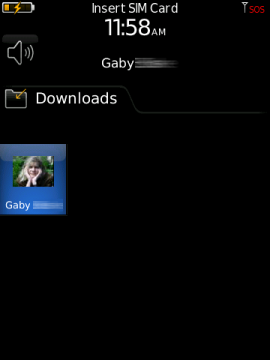 of your Homescreen to find the new created IconifyLink. |
9) Use the
IconifyLink!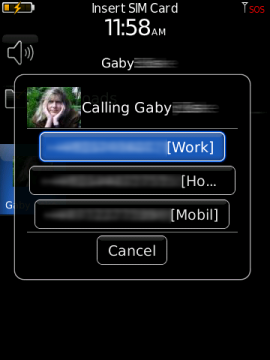 depending on the Link configuration the Number will be instantly dialed or (like in the screenshot above) you can select the number that you would like to call. |
1) Select the BlackBerry® Options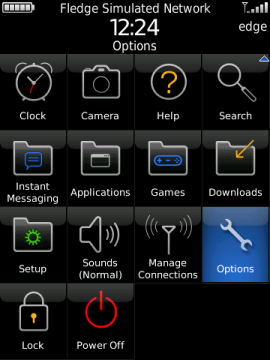 |
2) In the List select 'Iconify Options'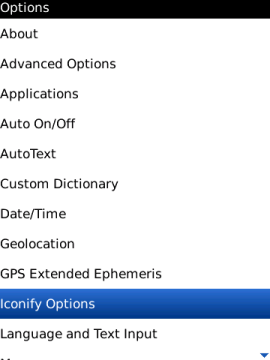 |
3) Select
'Edit IconifyLinks'...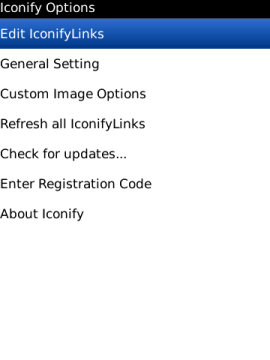 |
4) ...and
see the List of installed Links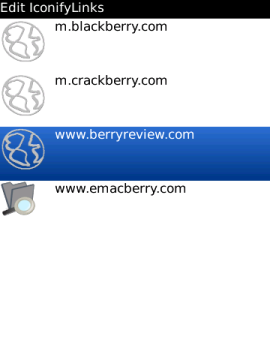 |
5) Press the
#Menu and select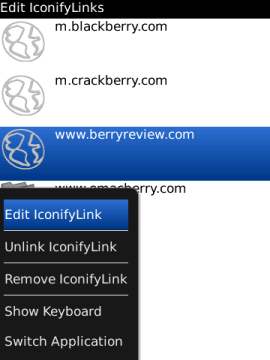 'Edit IconifyLink' |
6) Make your
modifications...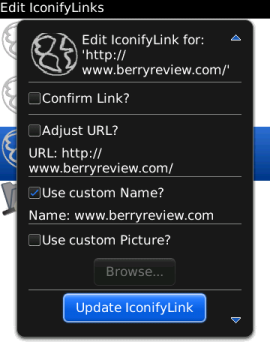 and finish the editing by pressing the 'Update IconifyLink' Button (or cancel) |
| 1) Select the BlackBerry® Options |
2) In the List select 'Iconify Options' |
| 3) Select
'Edit IconifyLinks'... |
4) ...and
see the List of installed Links |
5) Press the
#Menu and select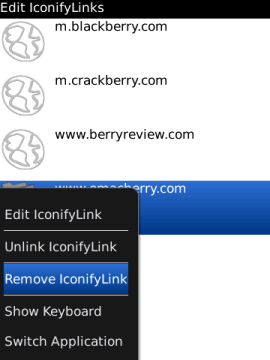 'Remove IconifyLink' |
6) Reboot if
required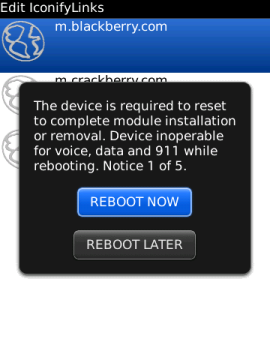 Perform a reboot if you are prompted |