
GPSLogger II - User Manual [100% free 100% offline]
A straight forward application, to record your movement with your BlackBerry® device over time
+ Simple Geocache Application for BlackBerry® devices
+ Outdoor Navigation
+ Lap Timer
|
|
GPSLogger II - User Manual [100% free 100% offline] |
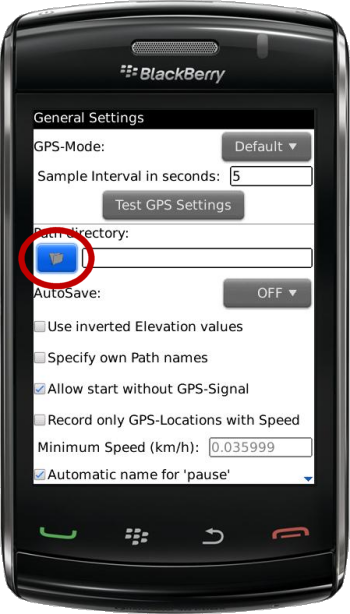
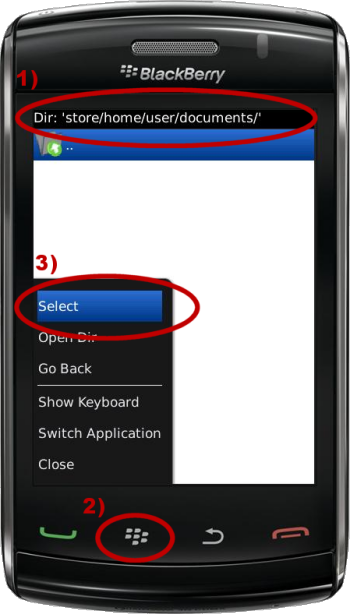
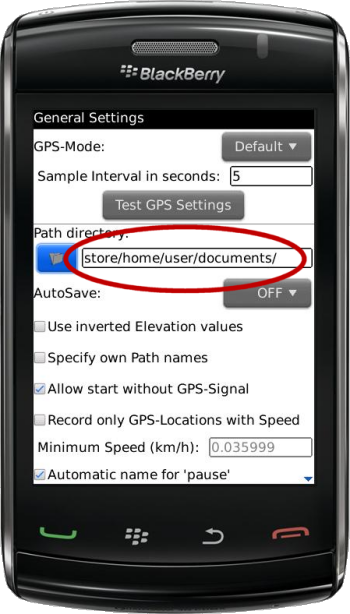
The trickiest part is to select your path directory – so simply follow these instructions: You can either manually type the path of your path directory or you move the cursor into the text input field and press the #Menu Button of your device and select the menu item: . Now you can browse over your device file system (only directories will be displayed) and go to your wanted path directory. Please note, you have to go into the directory you would like to have as your path directory. Once you have reached the directory of your choice select from the menu the item . This will close the directory browser and brings you back to the options dialog with the selected directory path in the 'Path Directory' text input field.
Please note, that the Menu Item is only visible once the cursor is in the 'Path Directory' text input field.
|
Step 1
|
|
Step 2
|
|
Step 3
|
|
Step 4
|
|
Step 5
|
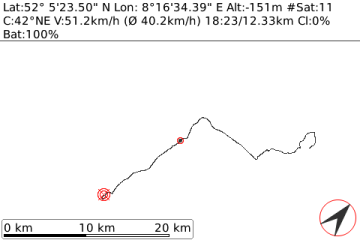 In the Path view you will see a 2D plot of your travelled route – each
time your current location will be updated (depending on your update
interval settings) the screen will be reloaded and resized if required.
There are tree different conditions, in which this screen will show
data:
In the Path view you will see a 2D plot of your travelled route – each
time your current location will be updated (depending on your update
interval settings) the screen will be reloaded and resized if required.
There are tree different conditions, in which this screen will show
data:| 1) | You are currently logging a path (logging mode) – the screen will be updated as soon as a new location is received from the GPS antenna. |
| 2) | You have loaded a path via the Path-Manager – this is for reviewing a previously recorded path. |
| 3) | You have loaded a previously recorded path into the background – the screen will show your current location together with the loaded path. This feature can be used, if you want to follow a previously recorded path a second time without the requirement to log the second run. |
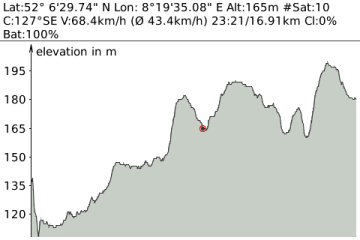 The Elevation view is showing a graph of your altitude over time – each
time your current location will be updated (depending on your update
interval settings) the screen will be reloaded and resized if required.
There are two different conditions, in which this screen will show
data:
The Elevation view is showing a graph of your altitude over time – each
time your current location will be updated (depending on your update
interval settings) the screen will be reloaded and resized if required.
There are two different conditions, in which this screen will show
data:| 1) | You are currently logging a path (logging mode) – the screen will be updated as soon as a new location is received from the GPS antenna. |
| 2) | You have loaded a path via the Path-Manager – this is for reviewing a previously recorded path. |
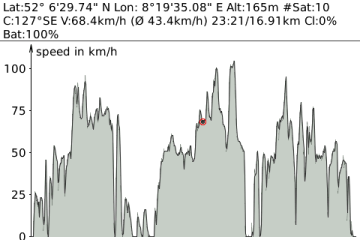 The Speed view is showing a graph of your speed over time – each time
your current location will be updated (depending on your update interval
settings) the screen will be reloaded and resized if required.
There are two different conditions, in which this screen will show
data:
The Speed view is showing a graph of your speed over time – each time
your current location will be updated (depending on your update interval
settings) the screen will be reloaded and resized if required.
There are two different conditions, in which this screen will show
data:| 1) | You are currently logging a path (logging mode) – the screen will be updated as soon as a new location is received from the GPS antenna. |
| 2) | You have loaded a path via the Path-Manager – this is for reviewing a previously recorded path. |