
| |
FileScout - User Manual - WiFi-Sharing PluginA file manager Software for BlackBerry® DevicesThe "all in one" file, zip, text and image manager for your BlackBerry® |
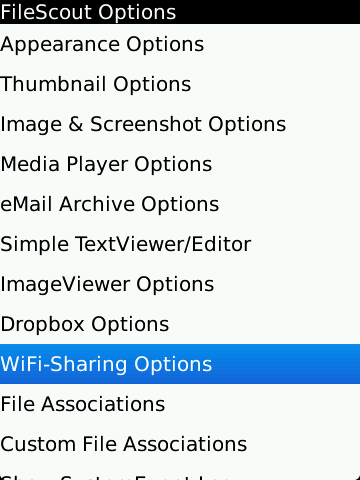 |
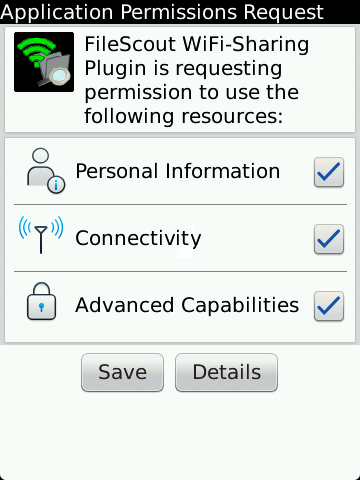
VerificationFor the start, open the FileScout Options and scroll down to the Item 'WiFi-Sharing Options' - if you do not have such a Item present then you need to update your current FileScout installation. The WiFi-Sharing Options have been added since FileScout v2.9.0.5 |
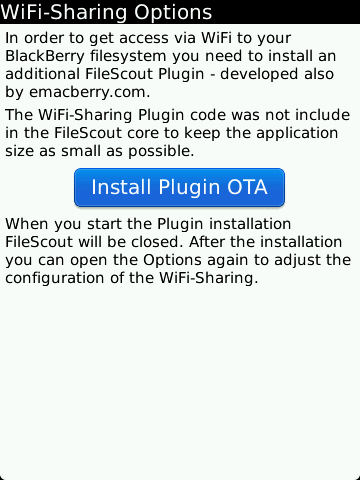 |
Step 1)
|
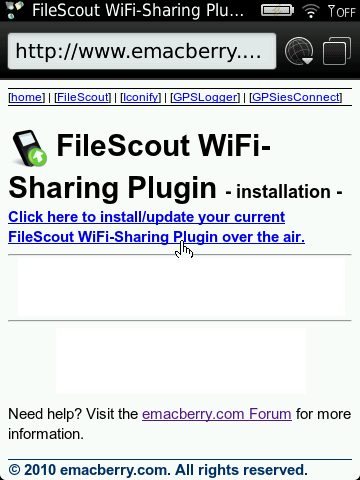 |
Step 2)
|
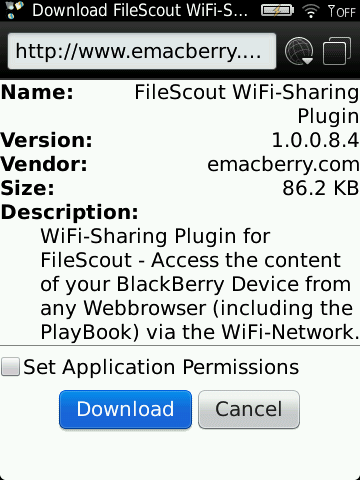 |
Step 3)
|
 |
Step 4)
|
|
Accessing the WiFi-Sharing OptionsTo configure the WiFi-Sharing plugin after the installation you simply need to start
FileScout again and select 'WiFi-Sharing Options' from the FileScout Options list.
|
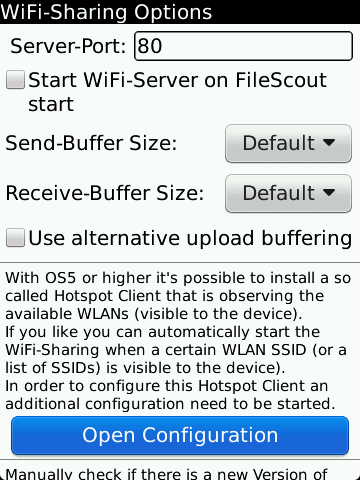 |
WiFi-Sharing Options
|
 |
WiFi-Sharing Hotspot Client (OS5 or higher)When like, you can install & configure a HotspotClient that will automatically
start/stop the FileScout WiFi-Sharing depening on the SSIDs that are visible to your
BlackBerry device.
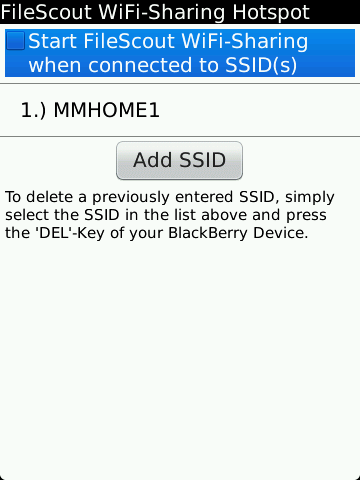
If you like to use this feature you need to enable the 'Start Filescout WiFi-Sharing when
connected to SSID(s)' checkbox.
When you enable this feature you need to switch over to your WiFi configutation and accept
the installation of the speciall Hotspot Client (normally this Configuaration dialog should be
open automatically).
To add a new SSID (the identifier of a WLAN) to the list, simply press the 'Add SSID' button
and enter the name of the SSID. When you like to add multiple SSIDs you need to repeat this step for
every SSID you would like to enter.
To delete a previously entered SSID from the list, select the SSID from the list and press
the DEL-Key on your BlackBerry keyboard.
How it worksAs soon as your device will see a WLAN with a SSID that you have in your WiFi-Sharing Hotspot
list FileScout will be automatically started and the WiFi-Sharing will be activated (no matter if you
have configured 'Start WiFi-Server on FileScout start' or not).
When the FileScout application will be started automatically it will be instantly send into the
background (if it was not already running before).
Once your device will not see any WLAN which is listed in your SSID-List (configured in FileScout)
the HotspotClient will auto-shutdown FileScout again (if it was not running in forground).
Please note that when you make use of the autostart functionality the successful sart of the
WiFi-Sharing Server will not be promted with a dialog [if you like to verify the scuccessful start
you can check the SystemEventLog of your device (key: com.emacberry.WiFiPlugin)].
|
DO's: |
|
DONT's: |
|