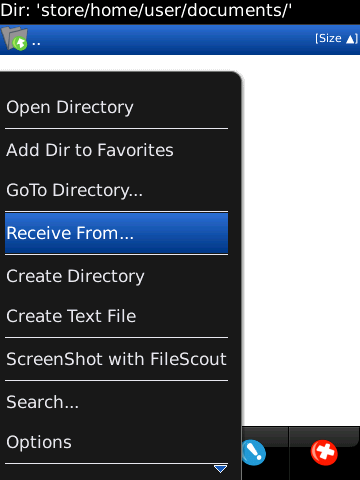
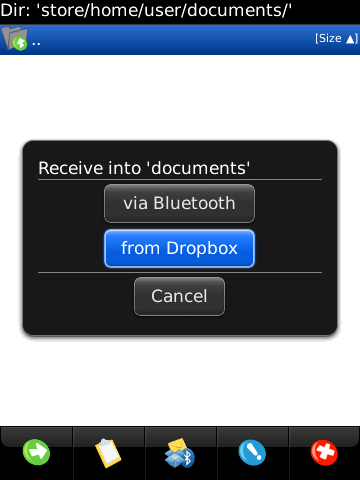
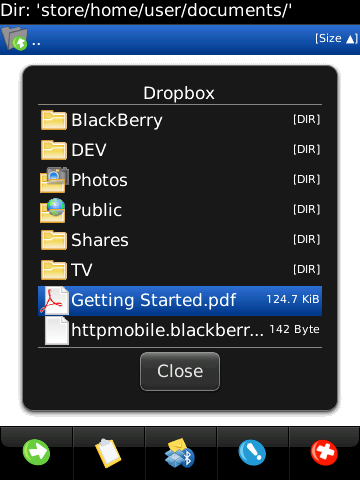
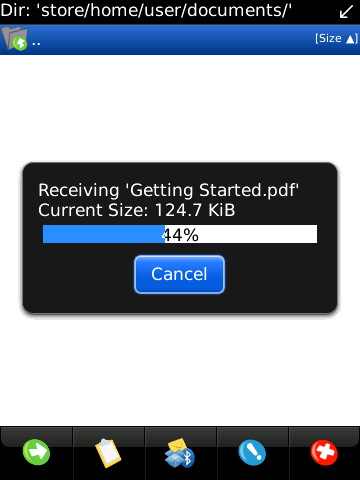
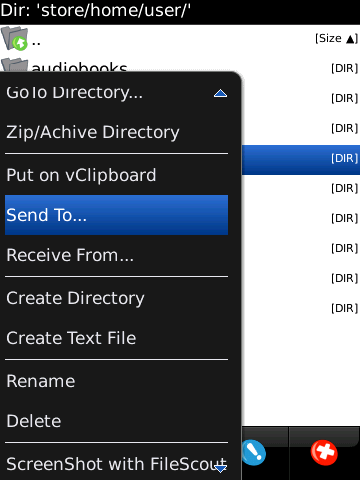
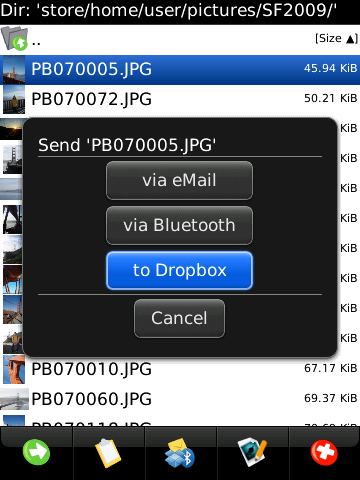
You need a FileScout RegistrationCode in order to connect to your Dropbox account. The Plugin will not work for the free FileScout Lite Version. There is no need to have anything additionally installed on your BlackBerry®.
 |
Verification
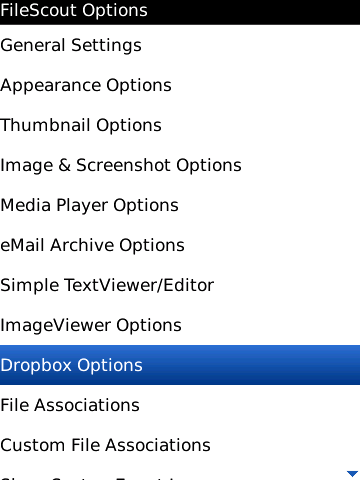
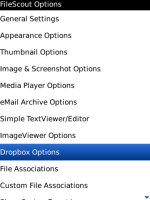
For the start, open the FileScout Options and scroll down to the Item 'Dropbox Plugin' - if you do not have such a Item present then you either have not the latest FileScout Version installed or you might use the free FileScout Lite Version.
|
 |
Step 1)
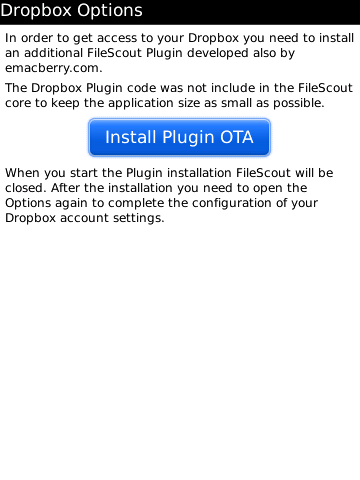
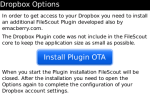
- When the Plugin is not installed yet then you see a button called 'Install Plugin OTA'
- Once the press this button Filescout will be closed and the BlackBerry® Browser will be opened and point to the FileScout Dropbox Installation page.
- Follow the Instructions on the webpage to install the Plugin (o)ver (t)he (a)ir on your
- When the installation is completed you can close the Browser and launch FileScout again.
|
 |
Step 2)
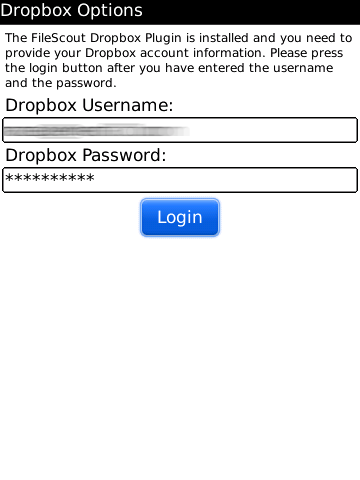
- Open the FileScout Dropbox Options again
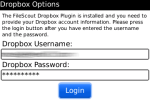
- Now you should see the Dropbox login and password entry fields
- Enter your Dropbox account information and press the Login button
- The Dropbox Options will be automatically closed and...
- ...after your account is successfully verified you will be informed by a short message
If you get a HTTP-TRANSPORT-ERROR [ErrorCode: 4001] at this stage then this means that FileScout is not able to make any HTTP Connection (which is essential for the Plugin to work).
Please check:
- FileScout - General Options - Preferred Network Setting - you might need to adjust this to WiFi, BES/BIS or it might be required (when using WAP2 or TCP) to configure in APN in the advanced TCP/IP configuration of your BlackBerry
- Your Firewall Configuration (see How to configure Internet access for FileScout)
|
 |
Step 3)
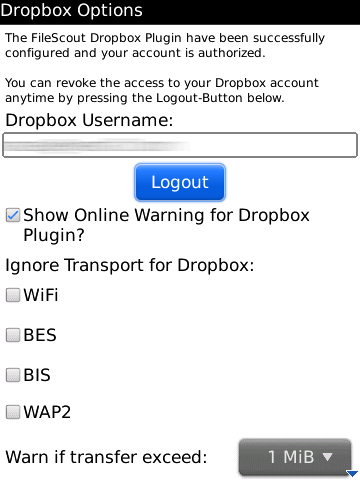
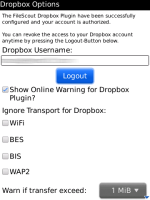
When you now open again the FileScout Dropbox Options you should see the following information:
- You Dropbox Account name (read only) - Please note, that the FileScout Dropbox Plugin will not save your Dropbox account password in any kind. The Password will be used only once for the login verification. If you want to revoke the access right for the FileScout Dropbox Plugin you can either use the Logout button or you can use the Dropbox Website
- Enable/disable Online Warning Message (warning about transfer volume)
- When you use "Auto" as FileScout Options/General Options/Preferred Network setting you can disable certain fallback transports - e.g. when your BES Admin have blocked access to the Dropbox URL
- Enable/configure a warning notification if a transfer will exceed a certain volume - you can select between OFF, 1 MiB, 5 MiB, 25 MiB and 200 MiB
- Check for FileScout Dropbox Plugin Update button
- Clear FileScout Dropbox Plugin Cache button - FileScout is caching the folder structure of Dropbox - this cache can be flushed via this function
|